What Is a Load Tracking Link?
A Load Tracking Link lets you share the latest recorded location of the truck carrying a customer's load. Send the link to a broker or customer so they can open a shipment page in their browser without signing in to Trucking365 TMS. In your account, this feature is called Broker Tracking Link, and its popup is titled Broker Link.
The page shows one truck marker on a Google map, the last location update time, and shipment information, including pickup and delivery details. It helps recipients check the shipment's progress using the location already recorded in the TMS. It does not provide a live GPS feed, a route history or an estimated arrival time.
Plans, Access and Truck Location
Creating and sending tracking links is available on the Startup, Growing and Pro plans. Employees use their company's plan. The company owner or a staff member with permission to view and save both loads and trips can create a link. Editing the default email text also requires access to save settings. If the button is missing, ask your company administrator to check your permissions and whether Broker Links is enabled for your account.
Set up automatic location updates
- Open Integrations from the account navigation and find the ELDs section.
- Find your provider: Motive ELD, Samsara or Geotab. Click its connect icon, complete the provider's connection steps, and use its enable control if the integration is disabled.
- Use Import Trucks for the connected provider when you need to bring its trucks into TMS. Check that the truck assigned to your trip is the truck linked to the provider.
- Open Vehicles and click the truck row's location-pin icon, titled Current Location. In the Vehicle Location popup, check that a location is available. Provider location buttons are available here when the corresponding integration is connected and enabled.
Keep the ELD integration connected and enabled for automatic updates. The broker page reads the latest location saved in TMS; opening or refreshing the broker page does not itself request a new GPS position from the ELD provider.
Update the truck location manually
- Open Vehicles, find the assigned truck, and click its Current Location icon.
- In the Vehicle Location popup, use New Location. Start typing in Location and select the matching suggestion. Check the Lat and Lon coordinates, or enter the correct coordinates manually.
- Click Save. Without an ELD integration, repeat these steps whenever you want to provide a newer truck position.
A new tracking link requires a valid truck location recorded today. If no suitable location is available, update the truck location and try again. Once the link exists, its map can show the latest valid location even if that location was recorded on a previous day. Always check the last update time before treating the marker as the truck's current position.
Check the load and delivery period
The load must have pickup and delivery stops with valid dates, and its status must be Booked, At Pickup, In Transit, At Delivery or Delivered. Creating, sending and viewing the link are available from the first pickup's scheduled date and time through one calendar day after the last delivery's scheduled date and time. The company profile timezone is used when checking this period.
The load also needs one unambiguous assigned trip and a valid truck for tracking. To review the load, open Loads and click its load number; check its status and pickup/delivery details. To review the assignment, open Trips, click its trip number, and check the load and truck on the Trip page. Save any corrections before creating the link.
Create, Protect and Send a Link
Set the default email message
- Open Settings from the account navigation, then click Broker Link Settings in the top bar.
- Enter your usual message in Email Text and review the Email preview.
- Click Save. This text will prefill the Broker Link popup. The tracking URL and password, when set, are included below the message automatically.
Open the Broker Link popup
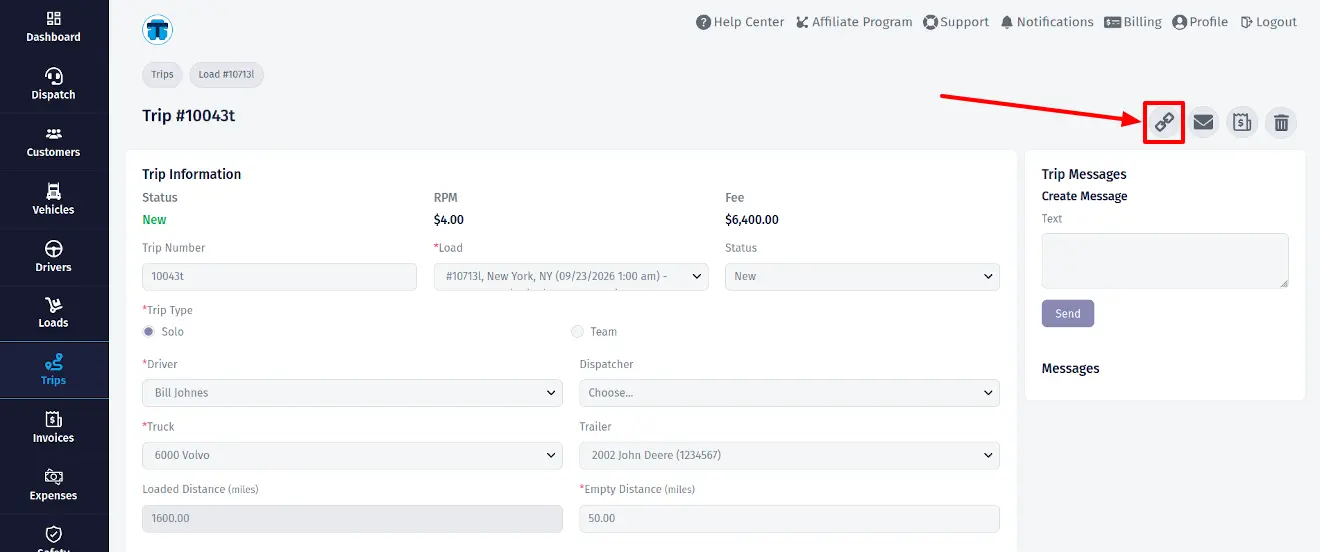
- Click Trips in the left sidebar, then click the trip number for the load you want to share.
- On the Trip page, confirm the correct load and truck. Save a new trip or any changed load assignment first.
- In the top action bar, click the round chain-link icon titled Broker Tracking Link, immediately before Send Trip Data to Driver Email.
- The Broker Link popup opens after the availability checks pass. TMS creates a link for this load if needed, or returns the same saved link if one already exists.
Choose the recipient, password and message
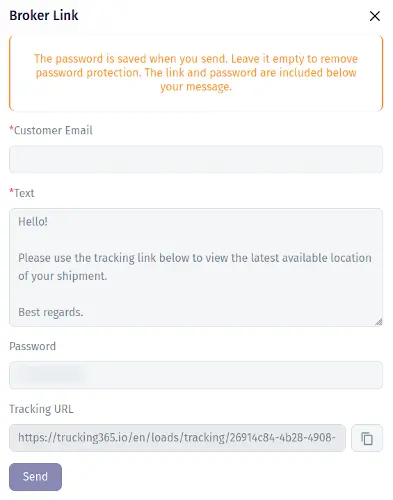
- Check Customer Email. It is prefilled from the load's customer when an email address is available. Enter or replace it with the broker's or customer's intended address.
- Review Text and adjust the message for this shipment. Editing this popup does not change the customer's saved email address or the default text in Broker Link Settings.
- To protect the page, enter a password in Password. An existing password is prefilled when reopening the popup. Leave the field empty if you want the link to open without a password; clearing an existing password removes protection when you send.
- Review the read-only Tracking URL. The copy icon to its right copies the URL for sharing elsewhere. Copying the URL does not save a new or changed password.
- Click Send. TMS saves the password setting and sends the recipient your message, tracking link and password if one was provided. On confirmed sending, the popup closes and the green message Email has been sent appears.
Password changes take effect only when you click Send. Closing the popup leaves password edits unsaved. To change or remove protection later, return to Trips → trip number → Broker Tracking Link, edit Password and click Send. The same URL is reused, and a changed password makes previously granted access require verification again.
If a field is highlighted, correct the displayed error and click Send again. If TMS reports that the email outcome is unknown, the password has already been saved: check with the recipient before opening the popup again for a new send. The success message confirms sending, not delivery to the recipient's inbox.
How Brokers and Customers Use the Link
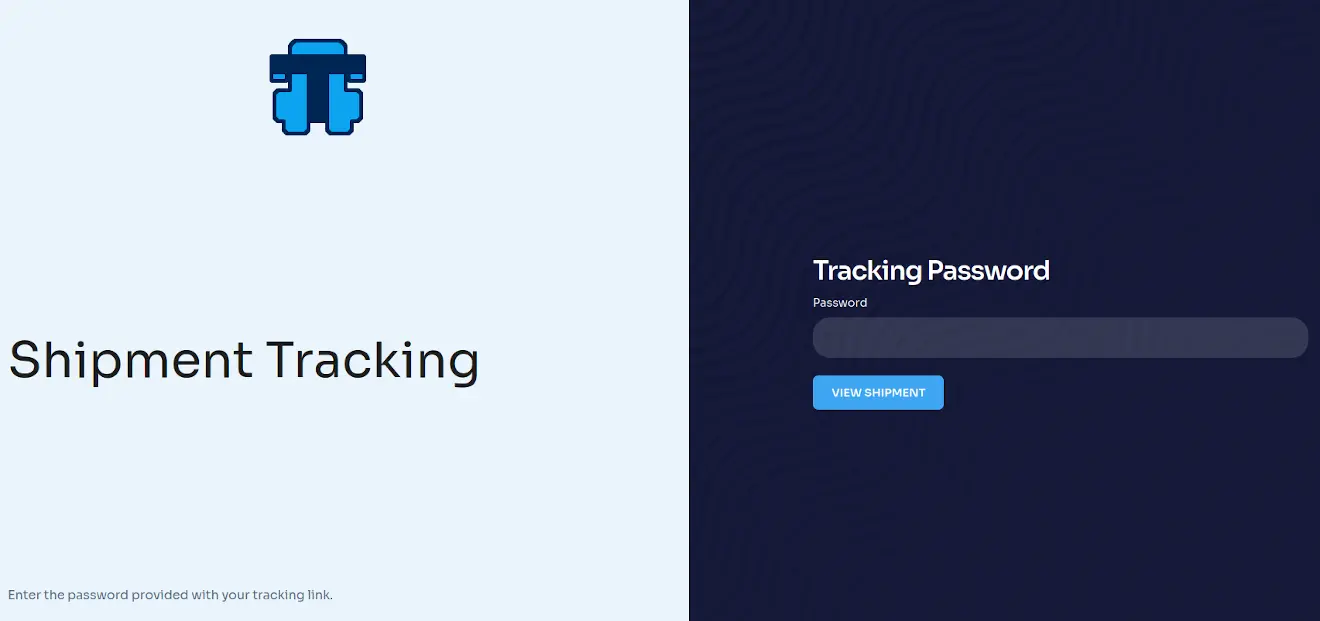
- Open the tracking link in the email, or paste the shared Tracking URL into a browser. A Trucking365 TMS account is not required.
- If the Tracking Password form appears, enter the password from the email and click View Shipment. A wrong password leaves you on the form with an error. After five incorrect attempts within an hour, further attempts are temporarily blocked; check the password with the sender and wait before trying again.
- On Shipment Tracking, review the truck marker, location description and Last updated time. Read the shipment, transport, pickup and delivery information below the map.
- Click Refresh on the tracking page to check for newer information recorded in TMS. If the coordinates have not changed, the map keeps the same position. JavaScript must be enabled to display the map and shipment details.
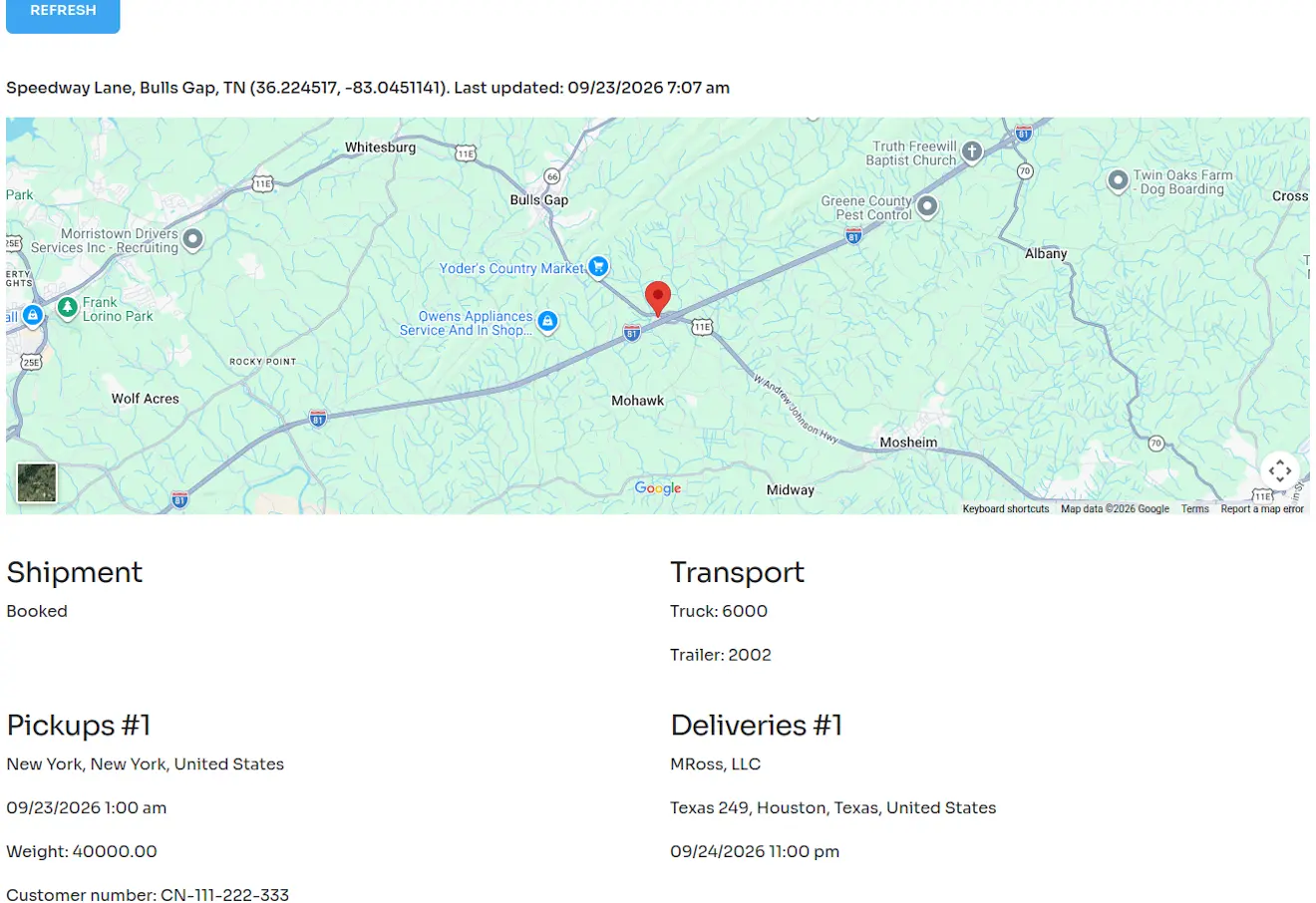
The marker represents the latest valid location recorded for the truck currently assigned to the load. It can be older than today, and it may reflect movement after delivery while the link is still available. Pickup and delivery stops are shown as text, rather than separate map markers. Dates and times are displayed as stored by TMS, without conversion to the viewer's browser timezone.
If there is no valid truck location, the page can still show shipment details with a message instead of the map. Ask the sender to update the assigned truck through Vehicles → Current Location or check the ELD connection under Integrations, then click Refresh.
The page becomes unavailable when the permitted tracking period ends, the load leaves an eligible status, or the load/trip/truck assignment is no longer valid. An unavailable link shows a not-found page. Contact the sender to review the load and trip; repeatedly entering a password will not extend the tracking period. Password access also expires after an hour, so you may need to reopen the link and enter the password again.