Configure the Trucking365 TMS account for Driver App integration

Log in to your Trucking365 TMS account.
Go to the "Integrations" page in the TMS and click on the "Enable Driver App" button in the "Driver App" section.
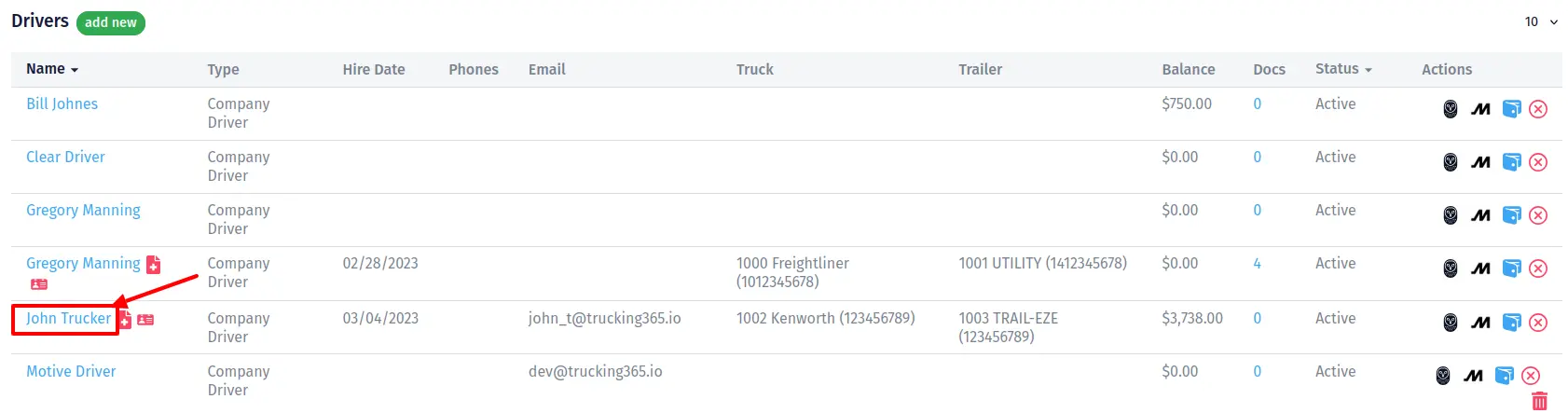
Go to the "Drivers" page in the TMS and click on the appropriate driver's name to edit.
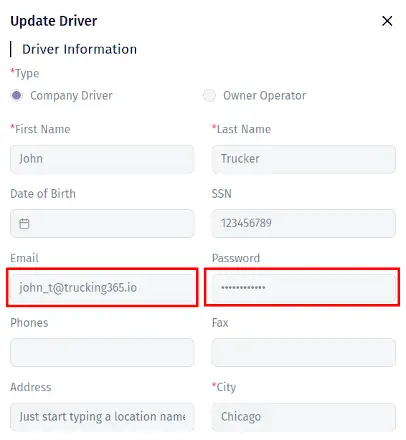
In the pop-up that opens, fill in the "Email" and "Password" fields and click the "Save" button.
Send "Email" and "Password" values to the driver in a safe way.
Install the Trucking365 TMS Driver App and log in to the driver's account
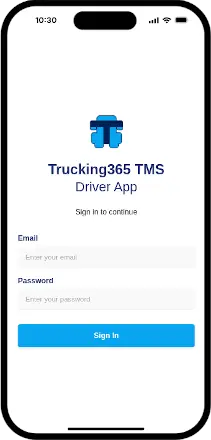
Go to the Apple App Store and find our Driver App using search fraze like "Trucking365 TMS Driver App" or follow this link https://apps.apple.com/app/trucking365-tms-driver-app/id6774934090 to the official Trucking365 TMS Driver App page.
Install the Trucking365 TMS Driver App on a mobile device.
Open the Trucking365 TMS Driver App on a mobile device and use the "Email" and "Password" that were received from the manager or dispatcher to log in to the app.
After successful login, the driver will be redirected to the "Trips" screen.
Using the Trucking365 TMS Driver App by drivers
Trips
Click the "Trips" item in the bottom menu. The app will display a list of trips with brief descriptions. Find the trip with the "New" status. Click on this trip. The app will open the trip screen.
Before heading out to the pickup location, the driver should open the "Trip Information" tab on the trip screen and click "Start the Trip."
When the driver arrives at the pickup location, they open the "Load Information" tab on the trip screen and click "Arrived" on the "Pickups" section.
After the trailer has been loaded and before heading out on the road, the driver should open the "Load Information" tab on the trip screen and click "Departed" on the "Pickups" section.
When the driver arrives at the delivery location, they should open the "Load Information" tab on the trip screen and click "Arrived" in the "Deliveries" section. Once the driver has received the "Proof of Delivery," they should open the "Finish Trip" tab on the trip screen and click the "Finish the Trip" button to upload the POD file, thereby completing the trip.
During the trip, the driver can upload or download documents for the delivered load. To do so, open the "Documents" tab on the trip screen and click the corresponding buttons.
During the trip, the driver can add fuel or other expenses. To do so, open the "Expenses" tab on the trip screen and click the corresponding buttons.
During the trip, the driver can send or receive a message from the dispatcher. To do so, open the "Messages" tab on the trip screen and read or complete the message-sending form.
Driver Payrolls
Click the "Settlements" item in the bottom menu. The app will open a list of settlements with brief information. Click on the corresponding settlement. The app will open the settlement's screen with detailed information. Drivers can download a PDF version of this settlement to their mobile device by clicking the "Download PDF" button.