Requesting credentials and configuring the TMS
Integration with Triumph Business Capital uses sFTP. Therefore, please contact Triumph to receive your sFTP credentials, which can be used in TMS for factoring integration.
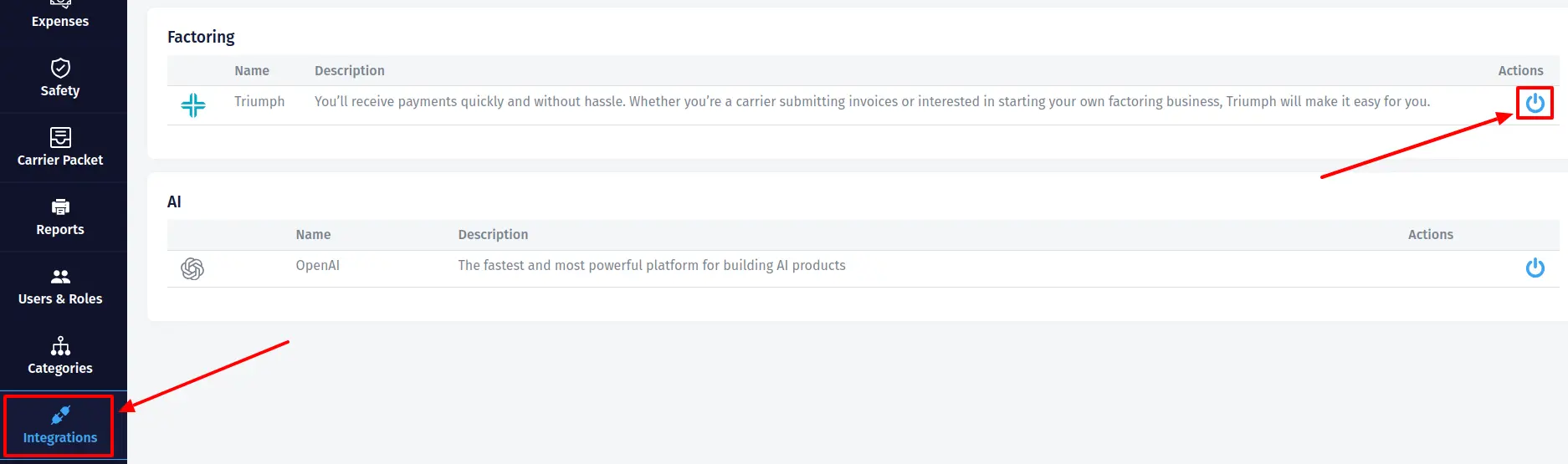
After Triumph has provided you with your sFTP credentials, go to the "Integrations" page in TMS, find the "Factoring" section, and click the "Connect to Triumph" button. In the pop-up that opens, fill in the "Username" and "Password" fields with the information provided by Triumph for sFTP integration, and in the "NOA" field, add the following text:
NOTICE OF ASSIGNMENT
THIS INVOICE HAS BEEN ASSIGNED TO AND MUST BE PAID DIRECTLY TO, TBK BANK D/B/A TRIUMPH
P.O. BOX 610028, DALLAS, TX 75261-0028
Notice of Assignment is required for all invoices sent to Triumph. Yours may differ. Please confirm with Triumph.
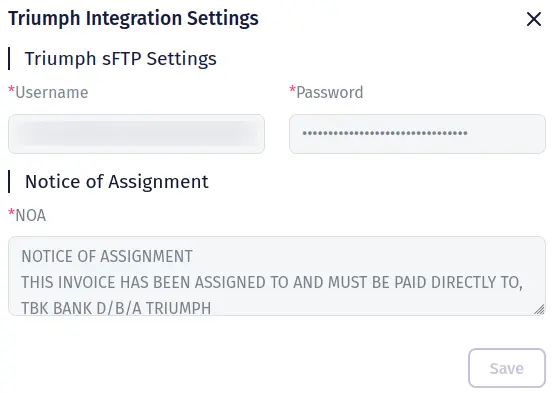
Click the "Save" button.
After you have successfully saved your sFTP credentials, please submit a TEST invoice to Triumph. Then, please contact your Triumph sales representative to ensure the submission is successful and acceptable to Triumph.
How to send an invoice to Triumph
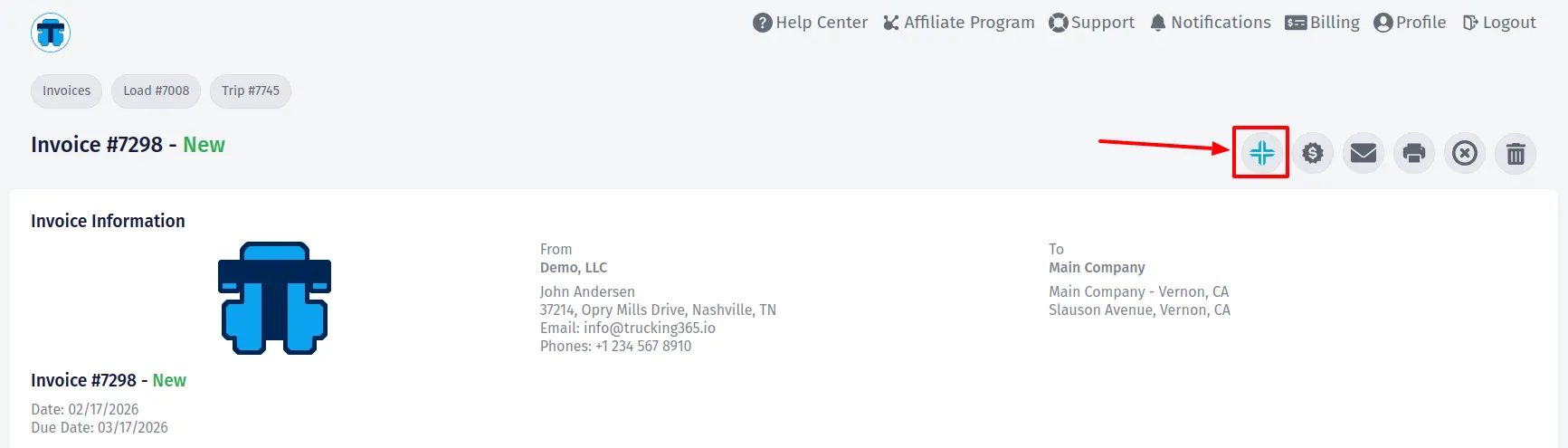
Open the page for the invoice you want to send to Triumph and click "Send Invoice to Triumph" in the upper right corner. Before clicking "Send" in the pop-up that appears, you must ensure that:
- - the invoice includes the Notice of Assignment (NOA) details;
- - all documents (Rate Confirmation, Bill of Lading / POD, Lumper receipts, scale tickets, pallet exchanges) for the appropriate load are uploaded and in PDF format;
- - the Bill-To company, the name of the debtor, or your customer's name is correct;
- - the "Customer Number" is correct (this is the primary billing reference to know what the invoice reference is for);
- - the invoice total amount is correct.
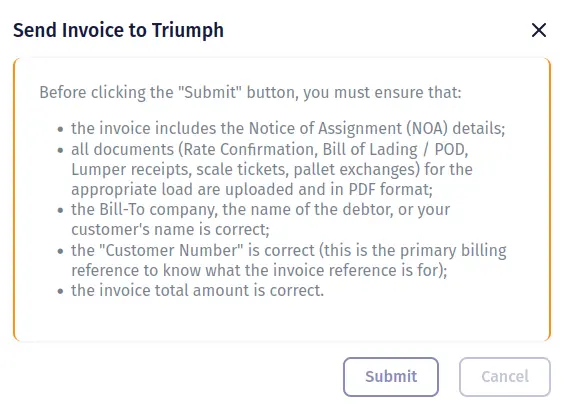
Click the "Submit" button.
Successful attempts to send an invoice to Triumph can be viewed at the bottom of the invoice page in the "Triumph Uploads" section.