Create a Driver Team to assign two drivers to one trip and calculate each driver's pay using their own rate and agreed team share. Solo trips remain available and keep their existing calculation rules.
The steps below start from the left sidebar in Trucking365 TMS. If Teams or a required action is unavailable, ask your company administrator to check access to drivers, teams and trips and whether Driver Teams is enabled for your account.
Create a Driver Team
Prepare both driver records
- Click Drivers in the left sidebar. For an existing driver, click their name in the Drivers table. To create a driver, click add new next to the Drivers table heading.
- In the driver popup, complete the required driver details, including their name and Type (Company Driver or Owner Operator). Set Status to Active.
- Under Payment Information, select the driver's Payment Type and enter the base rate in Amount. For Per Mile (or Per Kilometer), enter the amount per distance unit, for example 0.50 for fifty cents. For Percent (from gross), enter the percentage, for example 70 for 70%. For Fixed (weekly) or Fixed (monthly), enter the amount for that period.
- For distance pay, review Per Empty Mile (or Per Empty Kilometer). Set Per Extra Stop if you will add paid extra stops. Enter an explicit zero when the agreed rate is zero.
- Click Save. Repeat these steps for the second driver before opening the team form.
Both participants must be different, active drivers in your company. A driver can belong to only one non-deleted team, whether listed as Driver or Co Driver. Company Drivers and Owner Operators can be combined in a team; each keeps their own payment settings. Preparing the rates is necessary for correct pay, even though the team form itself only asks for participants and shares.
Open the team list and save the team
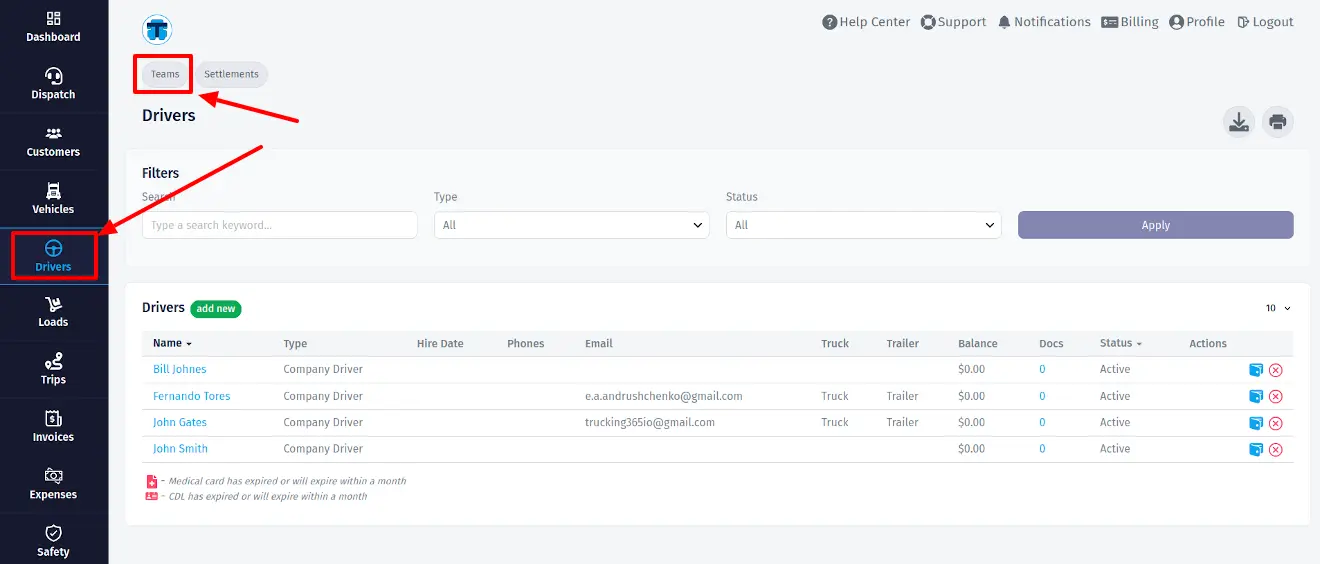
- On the Drivers page, click Teams in the top bar, before Settlements. This opens the Driver Teams listing.
- Click the green add new button next to the Driver Teams table heading. The Add Driver Team popup opens.
- Enter a Team Name, such as East Coast Team. Use a unique name within your company; a deleted team's name also remains reserved.
- In Driver, select the first driver. Enter their percentage in Driver Pay Share (%), for example 60.
- In Co Driver, select the second driver. Enter their percentage in Co Driver Pay Share (%), for example 40.
- Click Save and wait for the popup to close. The listing refreshes with the new team. If an error appears, correct the named field or membership conflict and save again.
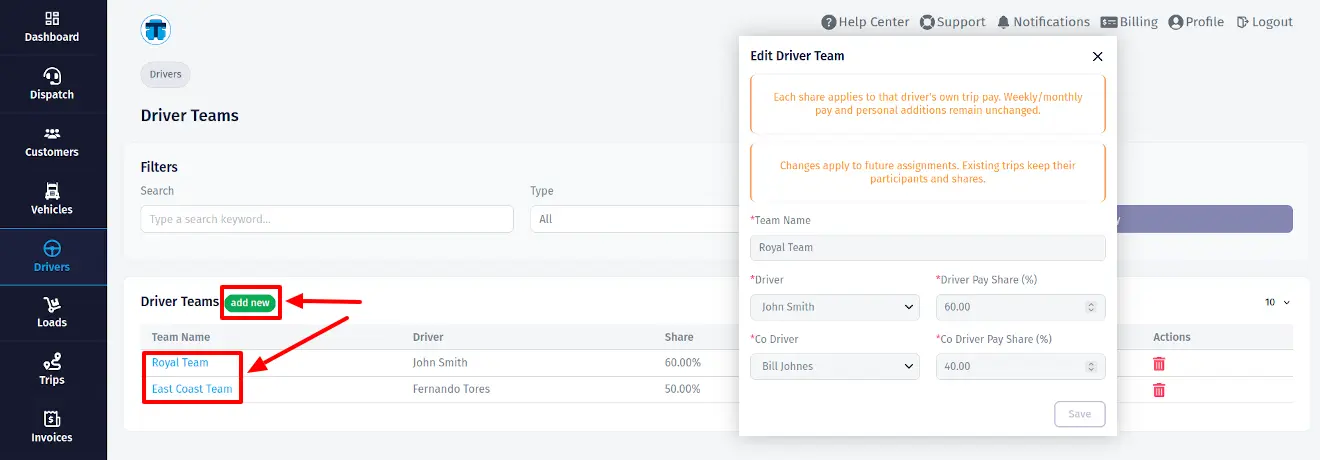
Each share can be from 0 to 100, with up to two decimal places. The combined shares cannot exceed 100%. A total below 100% is allowed, and the remainder is not distributed. A zero share is allowed. These are shares of each driver's own trip pay, not two percentages of one shared wage pool.
Remember the Team Name for the trip dropdown, which person is Driver and which is Co Driver, and both Pay Share values. Keep each driver's base payment settings accurate. You do not need to copy a team ID into the trip form.
To find or edit a team later, return to Drivers → Teams. In Filters, enter the team name in Search, optionally choose a driver Type, and click Apply. Type matches a team when either participant has that driver type. Click the team's Name to reopen its popup and click Save after editing. The row's delete icon removes the team from future selection while preserving its existing trip history. Team edits apply to future assignments; they do not replace participants or shares on existing trips.
Assign a Driver Team to a Trip
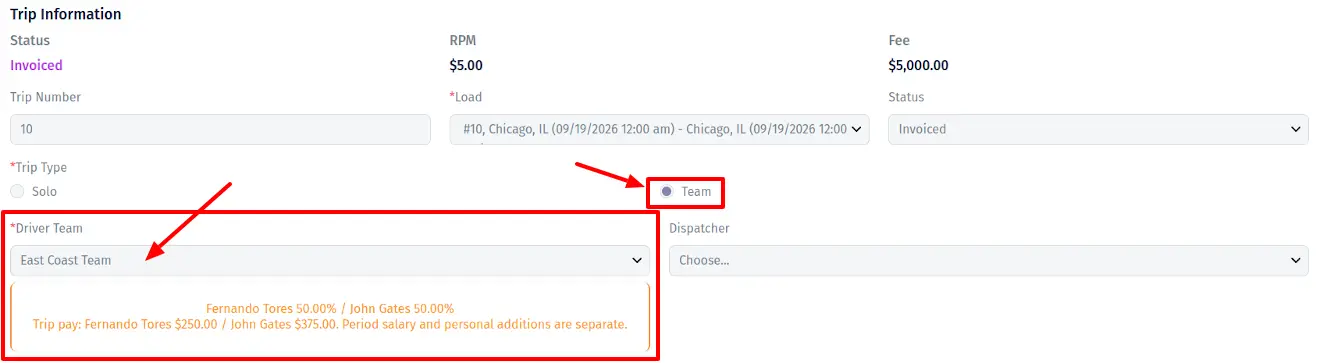
- Click Trips in the left sidebar. Click add new next to the Trips table heading to create a trip, or click an existing trip number to open a trip you can edit.
- On the Trip page, find Trip Information. Under Trip Type, select Team instead of the default Solo.
- The Driver field changes to Driver Team. Select the team by its saved name. Review the displayed driver names and percentages before continuing.
- Complete the trip's required fields, including its load and vehicle information. Review the pay preview when available, then click Save on the Trip page.
- Reopen the saved trip from Trips and confirm its team, participants and shares.
Team selection requires Driver Teams to be enabled and an available team with two active participants. If Team is unavailable, return to Drivers → Teams and create a team, then check both drivers' status on Drivers and reopen the trip. Ask your administrator about missing permissions or feature access.
Selecting a team copies its participants and shares into this trip. Later changes to the team do not automatically update that assignment. Once payment history or personal additions restrict an assignment change, the TMS can reject switching its participants or type; read the message before proceeding.
To use one driver on a trip that still allows assignment changes, open it from Trips, select Solo under Trip Type, select the driver in Driver, and click Save. The co-driver and team shares are cleared. Creating a team alone does not convert any Solo trips.
Understand Driver Team Pay and Settlements
For distance or percentage pay, TMS first calculates what each participant would earn individually for the trip, rounds that base pay to cents, and applies that participant's team share. The resulting pay is rounded to cents. A 60/40 team does not necessarily earn two parts of the same amount because the drivers may have different rates or payment types.
- Distance pay: base trip pay equals loaded distance × the driver's distance rate, plus empty distance × their empty-distance rate. The driver's team share applies to that base.
- Percent (from gross): base trip pay equals the load's line-haul amount × the driver's base percentage. For a per-distance or per-hour load rate, the line-haul amount is calculated using its distance or hours. The team share then applies to the driver's base pay. This is not a share of the entire invoice including unrelated charges.
- Fixed weekly or monthly pay: the team percentage does not divide the driver's period pay. The existing period-pay rules still apply; it is not a new salary payment for every team trip.
Example: different payment types in one team
Assume a trip has 1,000 loaded miles, no empty miles and a $4,000 line-haul amount. The Driver earns $0.50 per mile with a 60% team share. The Co Driver earns 70% of line haul with a 40% team share.
- Driver: 1,000 × $0.50 = $500 individual base pay; $500 × 60% = $300.
- Co Driver: $4,000 × 70% = $2,800 individual base pay; $2,800 × 40% = $1,120.
The combined trip pay is $1,420 before personal additions. Neither driver's amount is obtained by splitting the other driver's base pay.
Record personal extra stops, deductions and reimbursements
- Open Trips and click the saved team trip's trip number.
- On the Trip page, use add extra stop in Extra Stops, add deduction in Driver Deductions, or add reimbursement in Driver Reimbursements.
- In the popup, select the intended Driver from the two trip participants, complete the fields, and click Save.
- Check the Driver column in the corresponding table to verify who receives the entry.
These entries belong only to the selected driver. Extra stops and reimbursements increase that driver's pay; deductions reduce it. They are not multiplied by the team percentage again. For example, a $10 extra stop for the Driver adds $10 to their $300 trip pay, giving $310; it does not add $6 or change the Co Driver's pay. Extra-stop pay uses the applicable saved rate, so configure Per Extra Stop before the trip becomes payable.
Review balances and settlements
Delivered trips can provide a preview; payable team-trip earnings enter the balance from Invoiced, and remain included for Partially Paid and Paid trips according to the existing settlement rules. When a team trip first becomes payable, its drivers' payment rates are saved for that trip. Later edits to a driver's rates do not rewrite those saved rates. Changes to the trip's load amounts or distances can still change the calculated pay.
- Click Drivers in the left sidebar and review each participant's Balance separately.
- On the Drivers page, click Settlements in the top bar to open the settlement listing. Open the relevant driver's settlement to review its trips, personal additions, deductions and total.
- Review the second driver's settlement separately. The same team trip can contribute to both drivers' settlements, but each settlement includes only its recipient's trip pay and personal entries.
Payment and settlement status are tracked separately for each driver. A team still uses one trip and one load for the company; it does not create a second customer load or duplicate the company's line-haul revenue. If all trips are Solo, the existing Solo pay rules continue to apply.