Knowledge Base
Knowledge Base
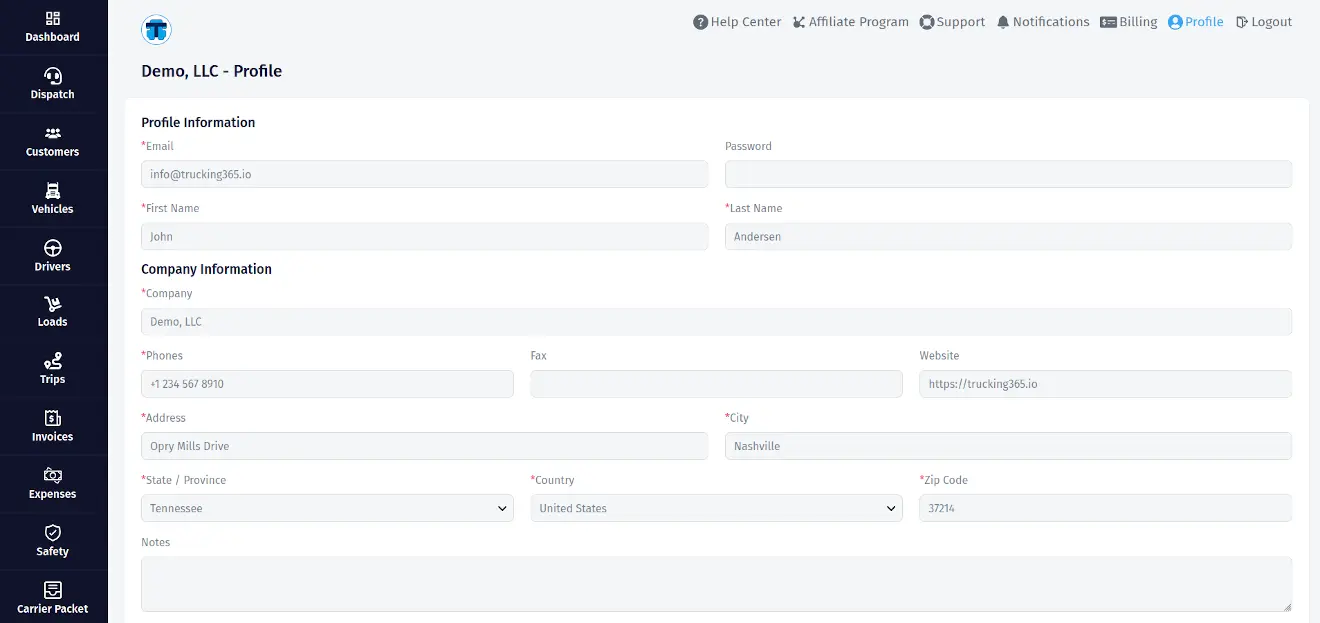
To set up a company (user) profile, click the “Profile” link in the top menu. On the profile page, you can set all the settings related to the company data and the person who registered the account in
Knowledge Base
To set locale settings, click on the "Settings" link in the main menu, which is located in the left sidebar. On the settings page, you can set such fields: "Timezone", "Language", "Distance Unit", "We
Knowledge Base
To set invoice settings, click on the "Settings" link in the main menu, located in the left sidebar, and then click on the "Invoice Settings" button in the top links bar. There are 3 sections on the i
Knowledge Base
Setting Up Settlement Settings To set settlement settings, click on the "Settings" link in the main menu, located in the left sidebar, and then click on the "Settlement Settings" button in the top lin
Knowledge Base
To add a customer (broker, shipper or consignee), click on the "Customers" link in the main menu, located in the left sidebar, and then click on the "add new" button in the "Customers section". A popu
Knowledge Base
To add a truck or a trailer, click on the "Vehicles" link in the main menu, located in the left sidebar, and then click on the "add new" button in the "Vehicles section". A popup will appear with seve
Knowledge Base
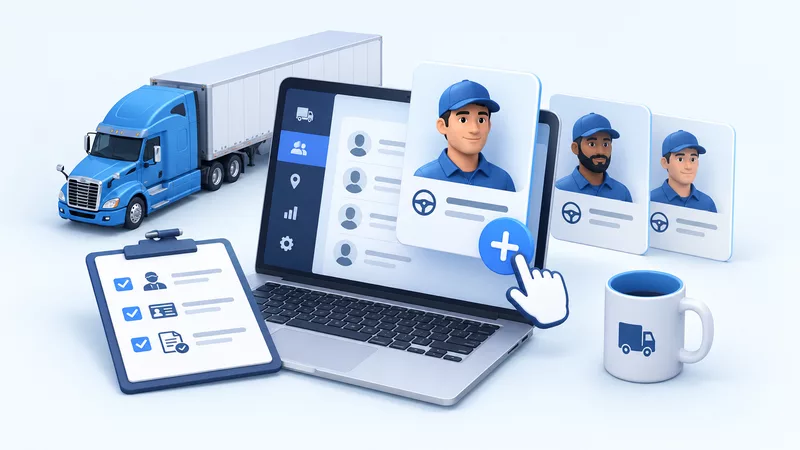
To add a driver, click on the "Drivers" link in the main menu, located in the left sidebar, and then click on the "add new" button in the "Drivers section". A popup will appear with several sections w
Knowledge Base
Locations are your company's shared address book in Trucking365 TMS. Save a warehouse, pickup point, delivery facility, office or other address once, then choose it when entering loads, customers or d
Knowledge Base
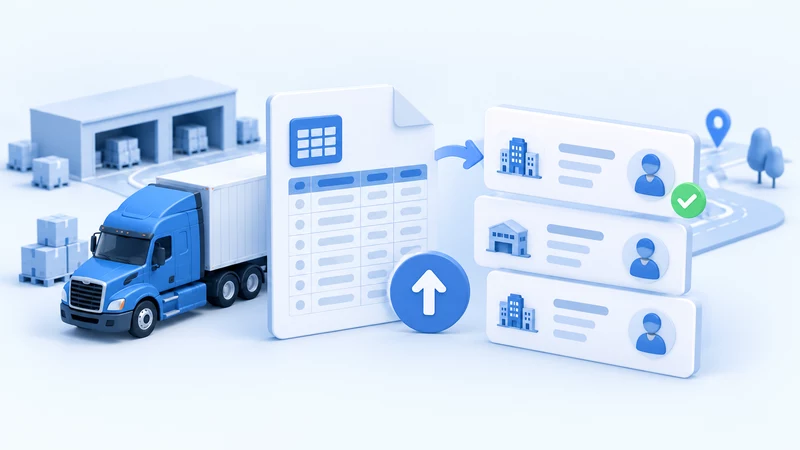
Import brokers, shippers and consignees from a spreadsheet into your company account in Trucking365 TMS. Use one row per customer to create a directory or update existing customer details without ente
Knowledge Base
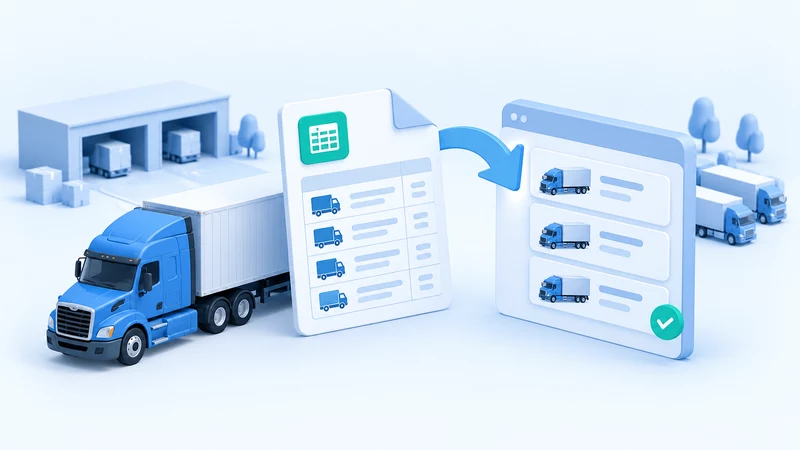
Import trucks and trailers from a spreadsheet into your company fleet in Trucking365 TMS. The same CSV file can contain both types of equipment, with one vehicle per row. Table of Contents What the Im
Knowledge Base
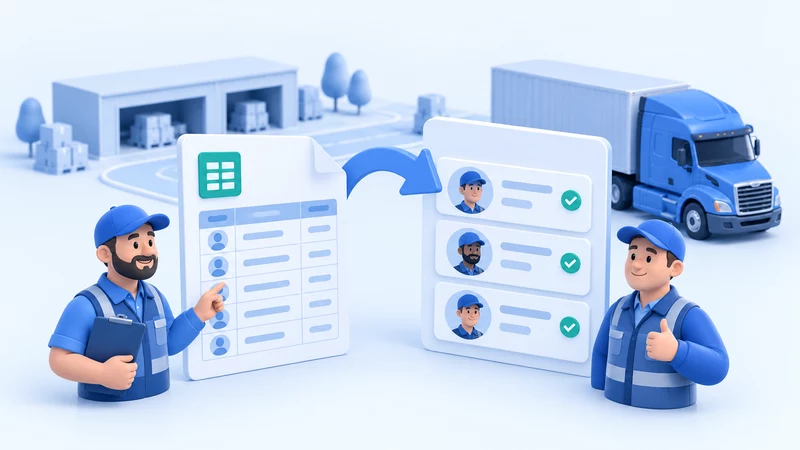
Import company drivers and owner operators from a spreadsheet into your company account in Trucking365 TMS. Add or update driver contact details, license dates and payment settings with one driver per
Knowledge Base
1. Create a load. Each newly created load has the "Planned" status (How to create a load). This means that at this stage these are just your plans to transport a load with these parameters. New loads
Knowledge Base
To create a load, click on the "Loads" link in the main menu, located in the left sidebar, and then click on the "add new" button in the "Loads section". A page will appear with several sections where
Knowledge Base
Two ways to create a trip There are two ways to create a trip: 1. By clicking the "Create trip" button directly on the load record page. 2. By clicking the "Create trip" button of the corresponding lo
Knowledge Base
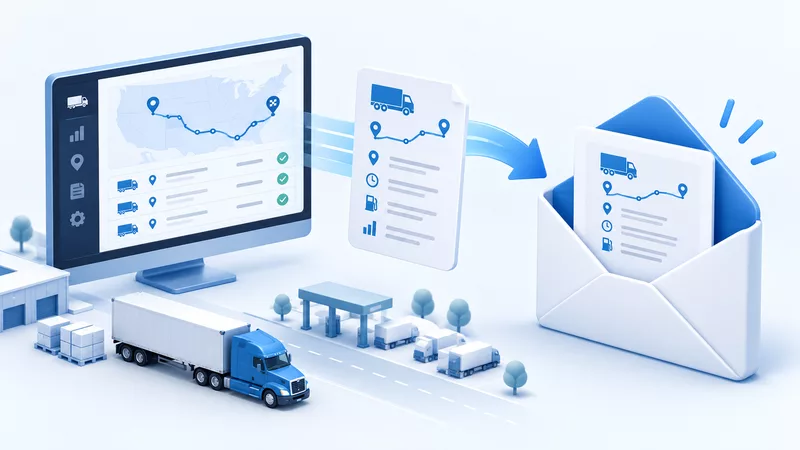
How to send trip data to email To send trip data via email, open the page of the appropriate trip and in the action bar (top right corner) click on the button "Send Trip Data to Driver Email" (envelop

Knowledge Base
Table of Contents What Is a Load Tracking Link? Plans, Access and Truck Location Create, Protect and Send a Link How Brokers and Customers Use the Link What Is a Load Tracking Link? A Load Tracking Li
Knowledge Base
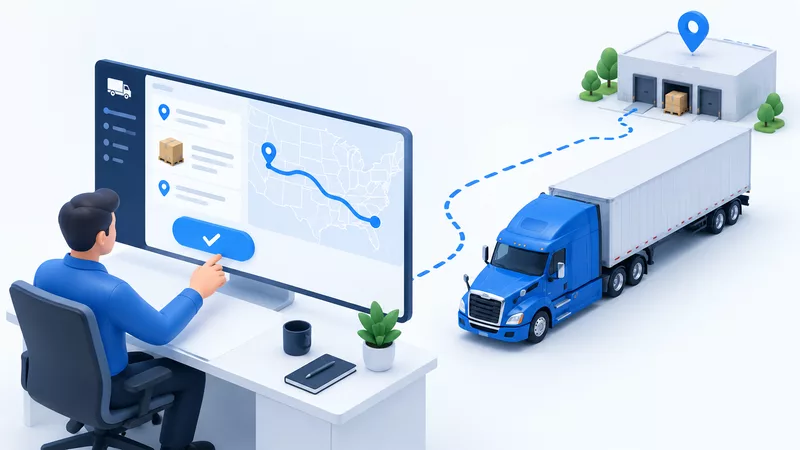
Before you learn how to dispatch a load, we recommend reading "How to Create a Load", "How to Create a Trip", "How to Send Load/Trip Data via Email" and "Load Life Cycle". After you have agreed to the
Knowledge Base
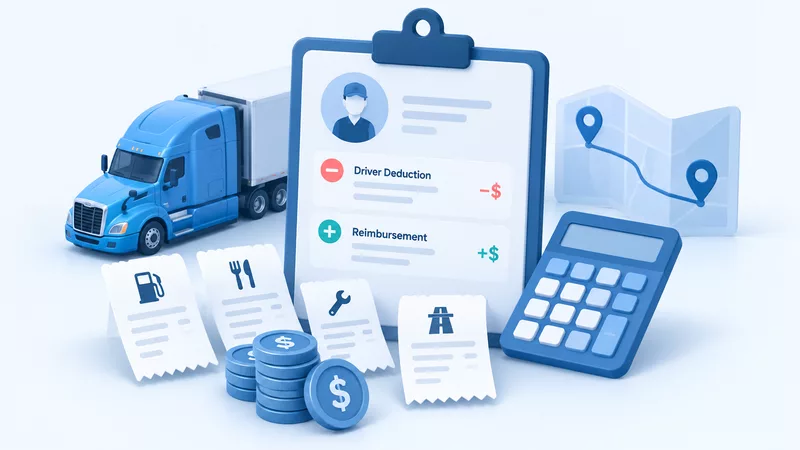
To add deductions or reimbursements for drivers, you need to open the corresponding trip record and in the "Driver Deductions" or "Driver Reimbursements" sections, you need to click on the "add deduct
Knowledge Base
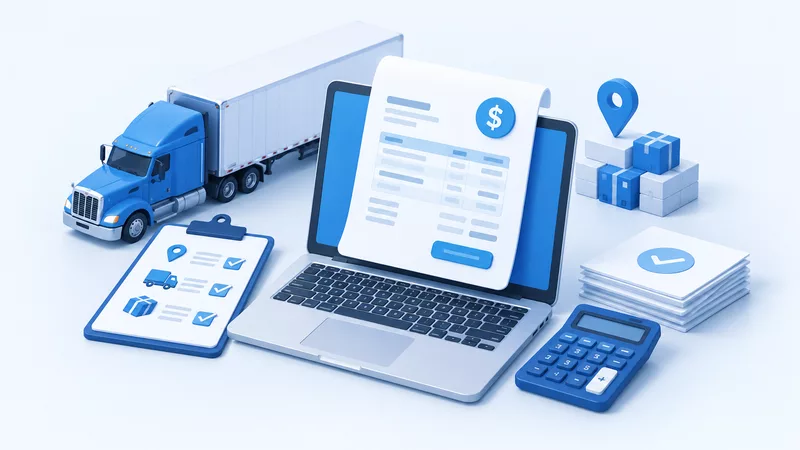
Two ways to create an invoice There are two ways to create an invoice: 1. By clicking the "Create Invoice" button directly on the trip record page. 2. By clicking the "Create Invoice" button of the co
Knowledge Base
Adding an Invoice Additions & Deductions To add invoice additions and deductions, you need to open the page of the corresponding invoice and in the "Additions", "Deductions" sections, click on the "ad
Knowledge Base
Adding an Invoice Payment There are two ways to add an invoice payment: 1. By clicking the "Create Invoice Payment" button directly on the invoice record page. 2. By clicking the "Create Invoice Payme
Knowledge Base
How to send invoice to email There are two ways to send an invoice via email: 1. By clicking the "Send Invoice Email" button directly on the invoice record page. 2. By clicking the "Send Invoice Email
Knowledge Base
How to create a driver settlement There is a way to create a driver settlement: By clicking the "Create Settlement" button of the corresponding driver record on the drivers listing page. A popup will
Knowledge Base
Adding a Driver Settlement Payment There is a way to add a driver settlement payment: By clicking the "Create Settlement Payment" button directly on the settlement record page. Editing form data and s
Knowledge Base
Adding Expenses Expense tracking is an integral part of a successful business. In the TMS you can easily track all expenses of your tracking business. To add expenses, click on the "Expenses" link in
Knowledge Base
Adding Taxes Tax tracking is an integral part of a successful business. In the TMS you can easily track all taxes of your tracking business. To add taxes, click on the "Expenses" link in the main menu
Knowledge Base
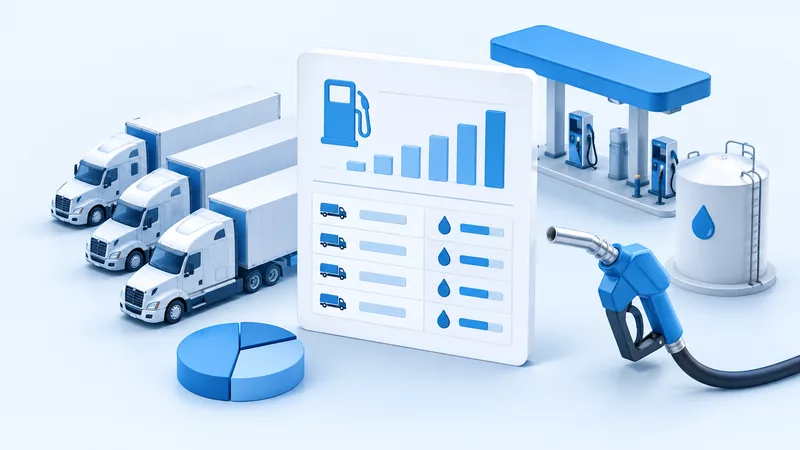
Adding Fuel Fuel tracking is an integral part of a successful trucking business. In the TMS you can easily track fuel. To add fuel, click on the "Expenses" link in the main menu, located in the left s
Knowledge Base
Adding Maintenance Maintenance tracking is an integral part of a successful trucking business. In the TMS you can easily track maintenance records. To add maintenance records, click on the "Expenses"
Knowledge Base
To add a user, click on the "Users & Roles" link in the main menu, located in the left sidebar, and then click on the "add new" button. A popup will appear with a form where you will need to fill in c
Knowledge Base
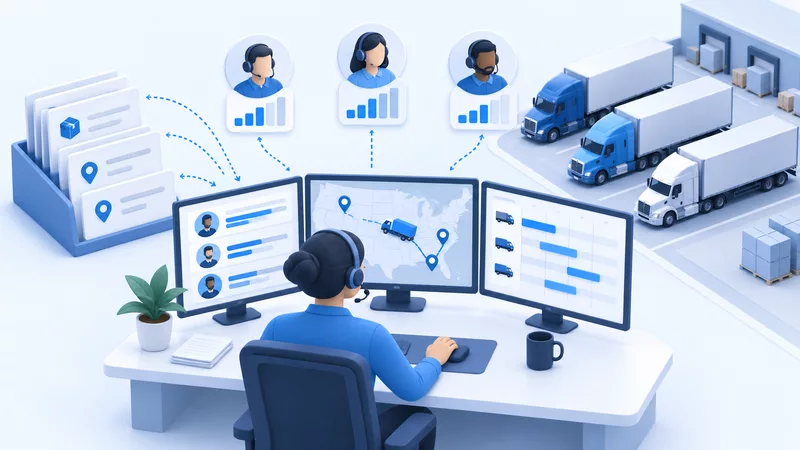
You can add a dispatcher in the same way as a regular user, by specifying "Dispatcher" in the "Role" field. See "How to add a user". On the "Dispatch Board" page, in the "Dispatchers" section, you can
Knowledge Base
The user who creates the account has the role "Root". This role cannot be assigned to new users. This role allows you to have full control over the entire account. TMS also has 2 predefined roles: "Ad
Knowledge Base
How to add customer documents To add customer documents, open the customer list page and click on the number in the "Docs" column of the appropriate customer. This will open this customer's document p
Knowledge Base
How to add vehicle documents To add vehicle documents, open the vehicle list page and click on the number in the "Docs" column of the appropriate truck or trailer. This will open this vehicle's docume
Knowledge Base
How to add driver documents To add driver documents, open the driver list page and click on the number in the "Docs" column of the appropriate driver. This will open this driver's document page. On th
Knowledge Base
How to add load documents To add load documents, open the load list page and click on the number in the "Docs" column of the appropriate load. This will open this load's document page. On this page, y
Knowledge Base
Base Report The base report shows Gross Income, Operating Expenses, and Net Income. To open base report, click on the "Reports" link in the main menu, located in the left sidebar, and then click on th
Knowledge Base
Incomes Report The incomes report shows data for all paid invoices. To open incomes report, click on the "Reports" link in the main menu, located in the left sidebar, and then click on the "Incomes" b
Knowledge Base
Expenses Report The expenses report shows data on all company operating expenses. To open expenses report, click on the "Reports" link in the main menu, located in the left sidebar, and then click on
Knowledge Base
Trucks Workload Report The trucks workload report shows data on the workload of trucks. To open trucks workload report, click on the "Reports" link in the main menu, located in the left sidebar, and t
Knowledge Base
Drivers Workload Report The drivers workload report shows data on the workload of drivers. To open drivers workload report report, click on the "Reports" link in the main menu, located in the left sid
Knowledge Base
Dispatchers Workload Report The dispatchers workload report shows data data on the workload of dispatchers. To open dispatchers workload report, click on the "Reports" link in the main menu, located i
Knowledge Base
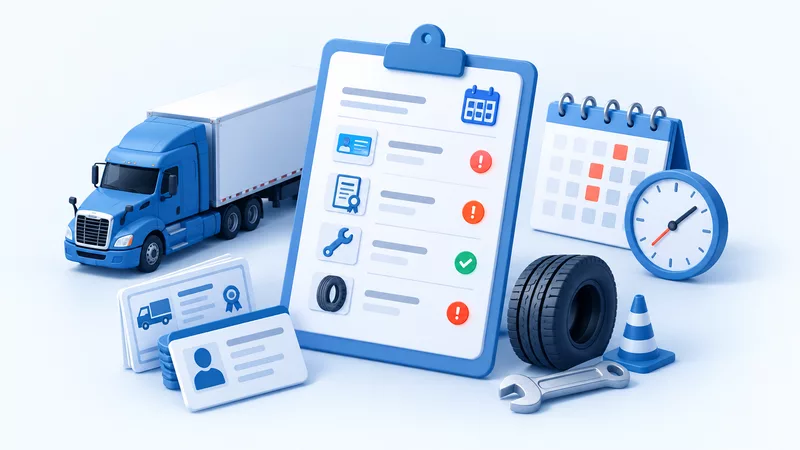
Expiry Report The expiry report shows all entities whose records have expiration date parameters and the value of this expiration date has already ended or is about to end. To open expiry report, clic
Knowledge Base
Fuel Report The fuel report shows data for all fuel purchase records. To open fuel report, click on the "Reports" link in the main menu, located in the left sidebar, and then click on the "Fuel" butto
Knowledge Base
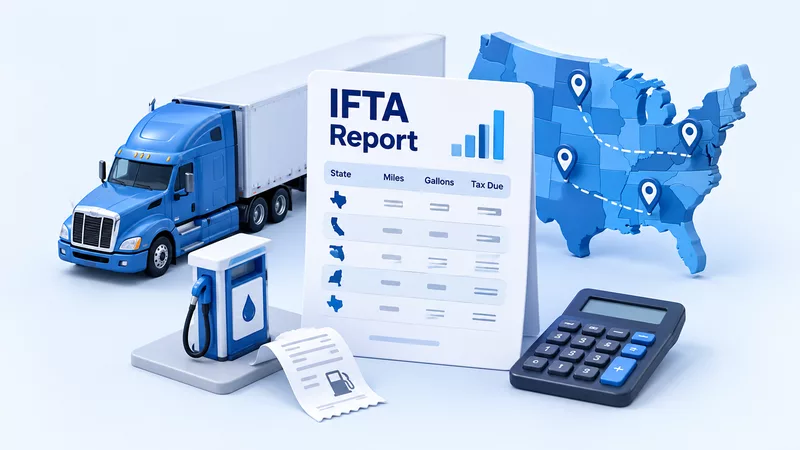
IFTA Report Use IFTA Reports to prepare a quarterly diesel fuel worksheet from jurisdiction mileage and tax-paid fuel purchases. Start with your company report settings, check your source data, create
Knowledge Base
Maintenance Log The maintenance report shows data for all maintenance records. To open the maintenance log, click on the "Reports" link in the main menu, located in the left sidebar, and then click on
Knowledge Base
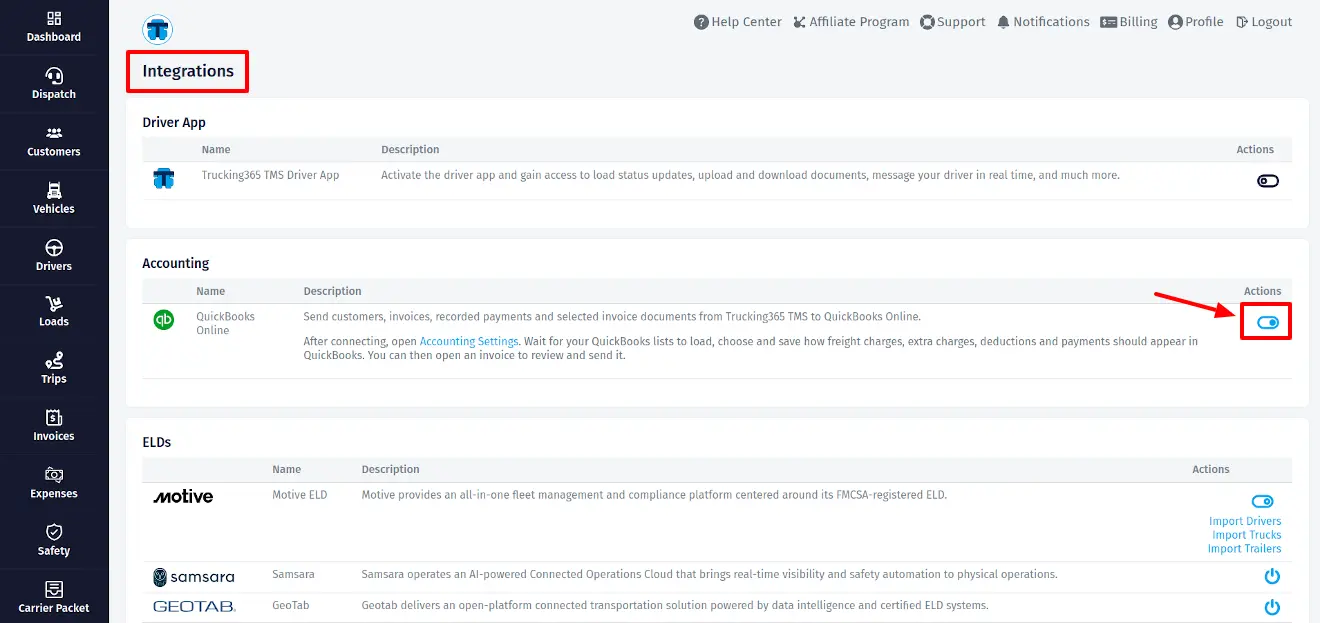
Table of Contents Connect QuickBooks Online Configure Accounting Settings Send Invoices and Payments Connect QuickBooks Online to send customers, invoices, recorded payments and selected invoice docum
Knowledge Base
Generate a Samsara API Token 1. In your Samsara account, go to the "Settings" page, then find "API Tokens" and click "Add an API Token". 2. Name the token "Trucking365 TMS" to make it easier to identi
Knowledge Base
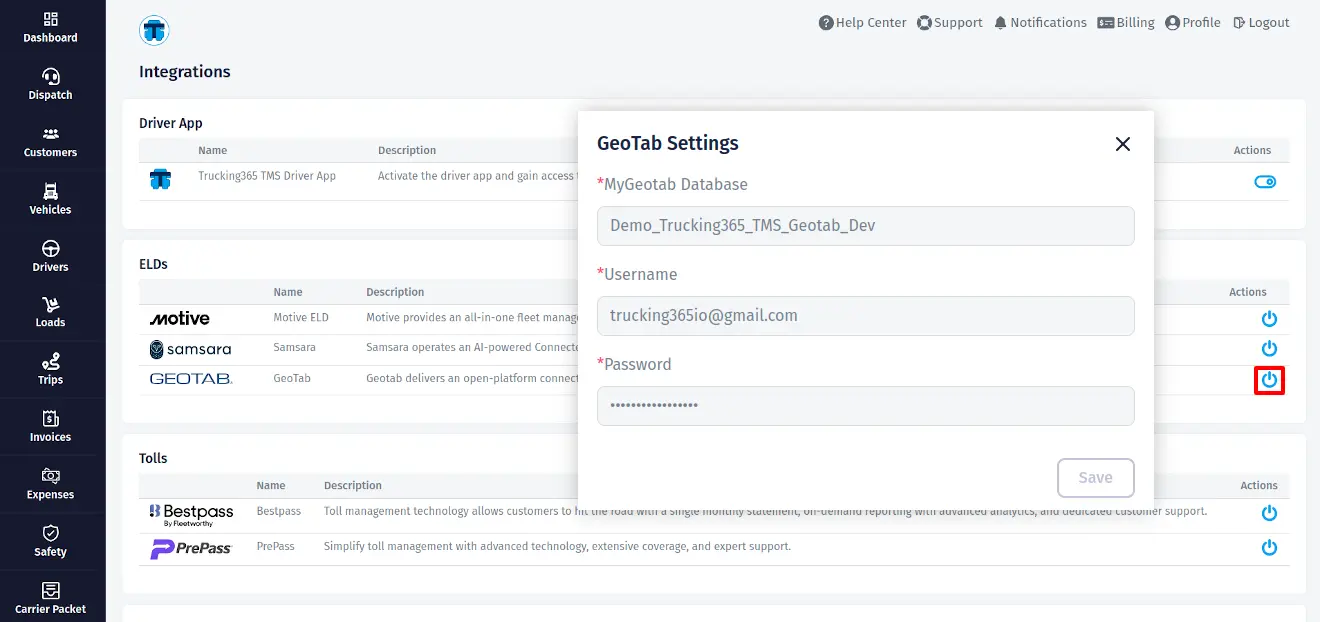
Table of Contents Create a Geotab Database Configure the Geotab Database Settings within Trucking365 TMS Import data from Geotab ELD to Trucking365 TMS Update data from Trucking365 TMS to Geotab ELD G
Knowledge Base
Preparing a Bestpass account for integration with Trucking365 TMS 1. Visit go.bestpass.com and log in. You must have admin rights (ability to create new users on the account) 2. Create a new user, cal
Knowledge Base
Preparing a PrePass account for integration with Trucking365 TMS Contact PrePass support and request sFTP connection credentials. PrePass will provide the sFTP access details for data storage. Configu
Knowledge Base
Preparing an OpenAI account for integration with Trucking365 TMS Create an OpenAI account (openai.com) if you don't already have one. Log in to your OpenAI account. Go to Settings > API Keys and click
Knowledge Base
Requesting credentials and configuring the TMS Integration with Triumph Business Capital uses sFTP. Therefore, please contact Triumph to receive your sFTP credentials, which can be used in TMS for fac
Knowledge Base
Configure the Trucking365 TMS account for Driver App integration Log in to your Trucking365 TMS account. Go to the "Integrations" page in the TMS and click on the "Enable Driver App" button in the "Dr
Knowledge Base
Creating a Support Request If you need support on any issue related to the TMS, its performance, payment, new features, errors, or just want to send feedback, etc., you can create a support request di
Trucking365 gives carriers loads, dispatch, driver pay, invoicing, and IFTA in a single TMS. Try it free.