Locations are your company's shared address book in Trucking365 TMS. Save a warehouse, pickup point, delivery facility, office or other address once, then choose it when entering loads, customers or drivers. Your team can reuse a checked address instead of typing the same street and city for every record.
A Location is a physical place, not a customer account or a load. One facility can serve several customers and support several operations. Locations belong to your company. If the Locations menu or a save action is missing, ask your administrator to check your Location viewing and saving permissions and access to the form you need.
Ways to Add Locations
Create a Location from the Address Book
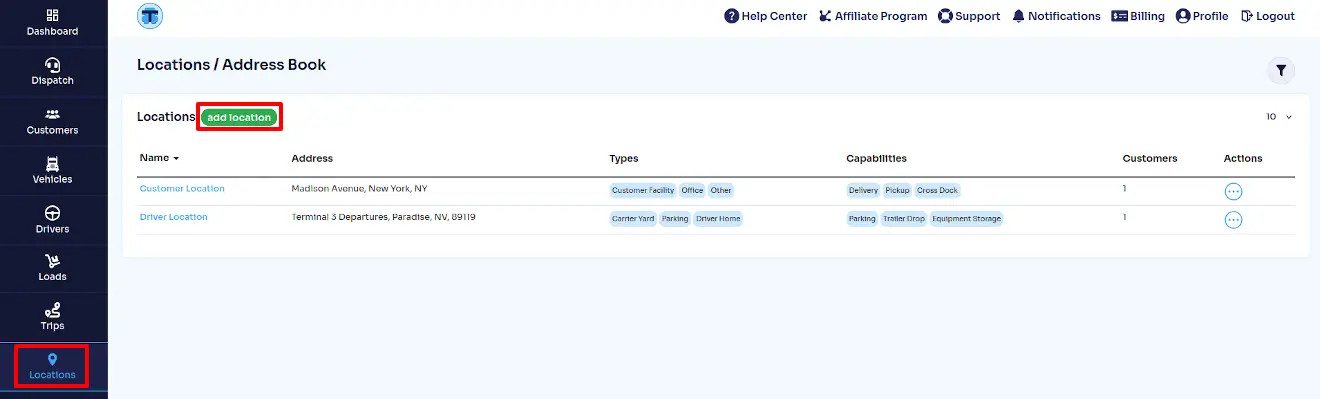
- Click Locations in the left sidebar to open Locations / Address Book.
- Click add location next to the Locations table heading. The new Location page opens.
- In the Location tab, enter a recognizable Location Name, such as Atlanta Warehouse — Main Dock. Active names must be unique within your company; use no more than 150 characters.
- Under Address, type a facility name or address in Search Address and click the correct Google suggestion. Review the filled address and coordinates. Typing text without choosing a suggestion does not complete the address lookup.
- You can also fill the address manually. Complete Country, State / Province, Street, City and ZIP / Postal Code. Open Coordinates & Entrance Details and enter Latitude and Longitude. Complete all fields marked as required before saving. Manual entry is available if Google search is unavailable.
- Leave Active checked so the Location can be chosen on new forms. Optionally add contacts, types and operations using the other tabs described below.
- Click Save at the bottom of the Location form. Wait for Record has been saved. If an error appears, open the indicated tab, correct the field and save again.
Save a Google address while working in another form
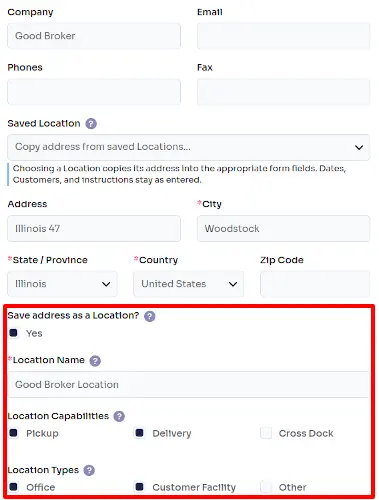
You can also add an address to the company Address Book without leaving a customer, driver or load-stop popup. This option needs both Location viewing and saving permissions and a complete address selected from a Google suggestion.
- Open a supported popup: on Customers, click add new or an existing customer's name; on Drivers, click add new or a driver's name. For a stop, open a saved load from Loads by clicking its load number, then click add pickup or add delivery, or open an existing stop from its table.
- In the popup's Address field, search for the place and click its Google suggestion. Check the country/region, street and city. Google must provide coordinates and identify the place.
- If the address is not already an active saved Location, the popup offers Save address as a Location?. Check Yes and enter a unique Location Name. Optionally choose Location Capabilities and Location Types from the choices offered for this form.
- Complete the popup's other required fields and click Save. The Location is created, or an existing inactive/deleted match can be reactivated, when the form saves successfully. Checking Yes alone does not save it.
- Click Locations in the sidebar and open the saved name to add further facility details.
If this option is absent, the place may already be active in the Address Book, the Google result may be incomplete, or you may lack permissions. Use Saved Location for an existing place, or create it through Locations → add location. If you change the address after choosing a Google result, choose the suggestion again before saving it as a Location. Entering a new load's initial pickup or delivery address does not itself create an Address Book entry.
Manage Location Details and Tabs
Click Locations in the sidebar, then click a Location's Name in the table to open its card. Use Filters, enter Search or choose Type or Capability, then click Apply to find a record. Search can match facility names, addresses and associated customers. Click the Name table heading to change sorting, or use the rows selector and pagination to browse the list.
Location tab: name, status and address
The Location tab contains the main details used to identify and reuse the address. Open this tab after clicking the saved Location name.
- Location Name: the name your dispatchers search for in Saved Location lists. Include a city or dock description when several facilities have similar names.
- Active: check Yes to make the Location available for new choices. Uncheck it and click Save to hide it from new selection while keeping saved records.
- Search Address: selects a Google result to fill the address and facility coordinates. Always review the result; the suggested pin may be at the front office rather than the truck entrance.
- Country and State / Province: choose the country first, then its matching state or province. Recheck the region after changing the country.
- Street, City and ZIP / Postal Code: enter the physical facility address. These are the address details you will copy into supported forms.
- Main phone: the facility's general telephone number, including area or country code.
- Main email: a valid general contact address. Saving it records a reference; it does not send an email.
- Website: the facility's web address, starting with https:// or http://.
Location → Coordinates & Entrance Details
Within the Location tab, click Coordinates & Entrance Details to review the map-related fields.
- Latitude and Longitude: the facility pin. Latitude ranges from −90 to 90 and longitude from −180 to 180. A selected Google result can fill both; manual entry also works.
- Entrance latitude and Entrance longitude: an optional separate truck access point when the entrance differs from the facility pin.
- Geofence radius (meters): an optional radius from 1 to 100,000 meters around the facility, recorded for future arrival-tracking use. Setting it does not currently start automatic arrival notifications.
- Time Zone: select the facility's local time zone from the system list if known. It provides context for facility hours; changing it does not reschedule saved load stops.
Location → Notes
Within the Location tab, click Notes. Use General notes for facility information, General access notes for gates, security checks and restrictions, and Truck route notes for the truck approach and roads to avoid. Each field accepts up to 10,000 characters. These are reference notes: they do not calculate routes or overwrite instructions already saved on a load.
Other tabs: a brief overview
Click the following tabs at the top of the Location card to store additional reference information. Their settings are not yet used throughout all Trucking365 TMS workflows; do not assume they will automatically fill instructions, book appointments or enforce service rules on a load.
- Contacts & Customers → Facility Contacts: click add new to enter a person's name, role and available phone/email details. Save the contact popup, then click Save on the Location page to persist it. Save new contacts before assigning them to an operation.
- Contacts & Customers → Associated Customers: select the customers connected with this facility and record their relationship. A customer link describes an association; it does not replace the Shipper, Consignee or Bill-To customer on a load.
- Types: choose one or more classifications for the place. Types help organize the Address Book and do not restrict which operations the facility can support.
- Operations & Services: check the available operations or services, then open an enabled profile to enter its optional settings. Profiles offer relevant service details, equipment/access requirements, instructions and assigned contacts, plus weekly hours and date exceptions. Use local facility time for hours. Click Save on the Location page to keep all changes. Disabling an operation keeps its saved settings.
Return to Locations to manage availability. The row's Delete action asks for confirmation and removes the Location from new choices. Existing stop addresses remain intact. Use Active in the card when you only need to hide a facility temporarily.
Enter Addresses Faster with Saved Locations
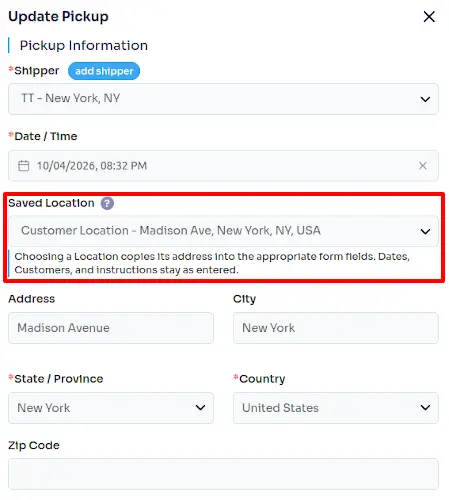
Use the Saved Location dropdown and type the facility name or address, then click the matching result. Choosing a Location copies its address into the form. Review the copied fields and click Save on that form to keep them. The following entry points are available now:
- New Load page: click Loads in the sidebar and add new. In Pickup Information, choose the Shipper as needed and use Saved Location for the pickup address. In Delivery Information, choose the Consignee and use its separate Saved Location dropdown. Review both addresses, dates and the remaining load fields, then click Save.
- Pickup popup: open Loads, click a saved load number and use add pickup in its pickup section, or open an existing pickup. Choose Saved Location, check the copied address, enter the Shipper and Date / Time, then click Save.
- Delivery popup: open a saved load from Loads and click add delivery, or open an existing delivery. Choose Saved Location, check the address, enter the Consignee and Date / Time, then click Save.
- Customer popup: click Customers in the sidebar and click add new or a customer's name. Choose Saved Location in the address area, review the copied fields, complete the customer information and click Save. The same popup is also available through add customer, add shipper or add consignee links on load forms when you have the required permissions.
- Driver popup: click Drivers in the sidebar and click add new or an existing driver's name. Use Saved Location in the address area, review the address, complete the driver details and click Save.
For example, save a frequently used warehouse once through Locations → add location. On the next load, find that warehouse under Pickup Information → Saved Location. The street, city and region are copied together, reducing typing and inconsistent spelling.
Saved Location selection leaves dates, customer selections and instructions as entered. It does not copy every contact, note, operating rule or opening hour into the load. Check each stop's requirements yourself. If a facility is missing, check that it is active and try searching by name or address. You can still enter an address manually if the saved list is unavailable.
Addresses are saved with the form where you use them. Later editing or deleting the Address Book Location does not rewrite addresses already saved on loads. To correct an existing stop, open that load and edit its pickup or delivery popup, review the address and save the stop itself.